• Skip to primary navigation
  • Skip to main content

Social Good Software

Creating amazing guest experiences through innovative software solutions for the social good community

  • Features
    • Deduper
    • Calendar Builder
    • Email Designer
    • Barcodes Scanner
    • Online Template
    • Checkout Flows
    • Membership Portal
    • Data Bridge
  • Pricing
  • Contact
    • About
    • Contact
    • Careers
  • Login
  • Get Price

Rick Hernandez

Social Good Software Update 1.3.3v

August 12, 2021 By Rick Hernandez

Deduper

  • Added support to automatically determine who the email address belongs to based on a weighted algorithm

Barcode Scanner

  • Added support for multiple barcode scanners per account
  • All existing barcode scanners will remain available till the end of 2021

Calendar Builder

  • Improved UI to make it more clear on how to setup reserved events
  • Added new logging view to search within logs
  • Calendars are now processed in parallel for data updates

Email Designer

  • Added support for a list of emails instead of a grid of emails when you have more than twelve emails
  • Added support for “Grid” instead of “Receipt Grid” to use the grid with Digital Membership Card
  • Added support to enforce membership type
  • Fixed a minor bug relative to date schedule for future tasks
  • Added new logging view to search within logs
  • Improved support for creating links to be simpler
  • Added support to process emails on their own service workers for immediately, specific date, and relative to the date
  • Added support for ODATA links to be links
  • Emails will only go out if Altru is available
  • Added support to auto fill details when you first create an email
  • Fixed a timezone bug with logs

Online Template

  • Added a fix to save markup when editing HTML markup
  • Added a fix for Safari back button to force a page to reload

Development

  • Membership Card Designer
    • Added the dollar amount on the card with a format
    • Fixed bug with not being able to remove hero image
    • Added support to process data updates in real-time instead of scheduled service
    • Added support to receive incoming questions
  • Data Import
    • You can now create, edit, update, clone, and delete batch imports
  • Ticket Designer
    • Fixed a bug with the editor not showing a preview of text after editing the text
    • Added logs when a ticket can’t be generated by Altru

Data Bridge

  • Added support to batch process attribute updates with Altru
  • Added support to process data updates in real-time instead of schedule service
  • Fixed a bug not to SYNC over “N/A” values to Altru

System Improvements

  • UI improvement for team section
  • Added new logs throughout the application to be able to export data with csv or excel

Filed Under: 2021, Account, Help Center, Software Updates

How to generate Altru Ticket ID

August 11, 2021 By Rick Hernandez

In this guide, you will learn how to get the Altru Ticket ID to generate ticket numbers and attach PDFs to your emails. This process is exceptionally useful if you want to attach automatically generated tickets to emails using the Email Designer.

Steps to generate Altru Ticket ID:

  1. On the left hand side, click on “Settings.”
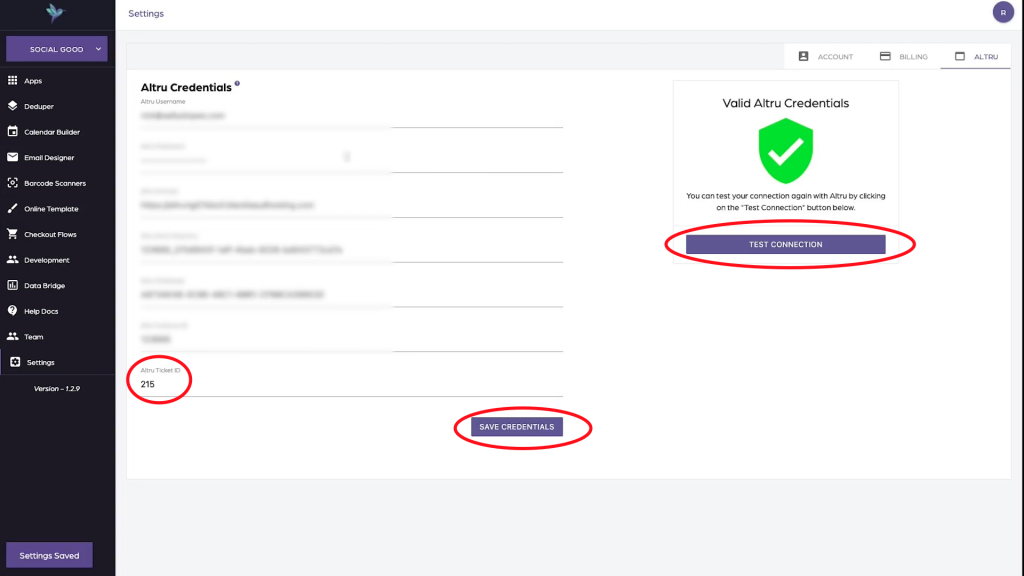
  1. Click on “Altru,” and locate the file field that says “Altru Ticket ID.” Enter the ID that matches with your business ticketing.

a. Social Good Software cannot retrieve this information for you; therefore, it must be done manually. To find your Altru Ticket ID, purchase a ticket for your business through Altru (of course, this can be a free ticket), and view the ticket using the email sent to your inbox.

Email a ticket to yourself from Altru to receive an eTicket URL. Tis holds the Altru Ticket ID.
Email a ticket to yourself from Altru to receive an eTicket.

b. Viewing the link’s URL, either by looking at the browser URL bar or inspecting the link element, search for “pid=###”, substituting ### for your Ticket ID (ex. 215 or 219).

Find the "pid" inside of the ticket URL to find the Altru Ticket ID.
Find the “pid” inside of the ticket URL to find the Altru Ticket ID.

c. Use the 3-digit number found in “pid” as the Ticket ID. This only has to be entered once, and SGS will save it for all subsequent times you create tickets. Make sure to “Save Credentials” and “Test Connection” when you’re finished entering these changes.

Enter Altru Ticket ID, Save Credentials, and Test Connection.
Enter Ticket ID, Save Credentials, and Test Connection.
  1. Enter the “Email Designer” app. Click into the email you wish to automatically add tickets to. Go into “Settings,” found on the top right side of the screen.
  2. Click on “Automatically generate eTicket numbers”. Save these changes.
    • At this point, if you see a banner on the bottom that says “Invalid Ticket ID,” refer back to step 2a to retrieve the correct Altru Ticket ID.

Summary

Obtaining the Tickets ID from Altru is somewhat challenging, but it’s very beneficial to the organization once you acquire it. It provides the automation tools necessary for generating tickets and cutting down on menial tasks. It will give you more control over ticketing and less headache printing tickets and assigning to various guests, giving them a better experience and enabling you to help them more.

As always, if you have any further questions about generating tickets, or if you are missing information, do not hesitate to contact us!

Filed Under: Account, Account, Help Center

How to reset your password

August 5, 2021 By Rick Hernandez

Passwords help secure your account and keep your information private to you and those authorized to access it. However, it is hard to keep track of passwords at times. With the Reset Password option of Social Good Software, you can easily change your password that you forgot. Just follow the step below:

  1. Go to the Login Page of Social Good Software, and select the “Forgot Password” option.
  1. Enter the email associated with your Social Good Software account and press “Reset Password.”
  1. Open your email address in another browser and find the message sent to your inbox from Social Good Software about your password information. This email contains a verification code that you can use to reset your password.
  2. Copy the code, and then go back to the Social Good Software password page and paste the code in the box that says “Verification Code.”
  3. Reset your password by typing in a new password and pressing “Set New Password.”

Note: This option will not work with unknown emails but let you redirect to the account creation page.

If you follow these steps correctly, you can again log in to your account as usual with your new password. Keep this password handy–write it down, and keep it safe!

Filed Under: Account, Account, Help Center

Automated email first time purchase query digital membership card

July 30, 2021 By Rick Hernandez

Filed Under: Development, Digital Membership Cards, Help Center

How to clean up a constant contact list

July 9, 2021 By Rick Hernandez

Introduction

Having clean data is necessary as you can use these lists for marketing or any promotional activity from your organization. Make sure to clean your records from tools like Constant Contact and Mailchimp before you sync it over to have consistent data within Altru. Learn how to free your Constant Contact list from bad records without exerting a lot of effort in sorting and cleaning your data using the Data Bridge.

Cleaning up a Constant Contact list

1: Log in to your Social Good Software account.

2: Proceed to Data Bridge.

3: Click on create widget button.

4: A dialog box will pop out wherein you need to put on the name of the Widget before you click Next.

5: Select the widget type then click Next.

6: You now have a new Widget. Click on it and authorize it to go into Constant Contact.

7: Once it was authenticated, on the Widget Settings under Mailing List select the list that you want its data to be clean up. In this illustration, we will go with New Members.

8: Proceed to the Data Cleanup where you can see your first 500 rows of record based on the selected mailing list and start cleaning it up.

9: On the left side of the window located the options that you can enable and disable. Each of these options has different rules that you can take advantage of to have a consistent record. You can also test your configuration to see what works for you and Save Settings.

10: If everything looks good, export as a CSV or XLS format to perform a spot check. The option to export the data is located at the bottom part of the window.

11: Open the document to see if all the data is nice and clean; spot check if necessary. If you found inconsistent data, you can fix it manually.

12: You can now reimport this clean list of contacts into Constant Contact. 

Summary

These options are specially made with the intention of helping you clean your data from tools like Constant Contact. Repeat this process to all your lists before you sync it over to Altru to free your records from any bad data.

If you have more questions, please reach out to us through our support channel.

Filed Under: Data Bridge, Help Center, Implementation Guide, Integrations

How to prevent duplicate emails when creating household records

July 8, 2021 By Rick Hernandez

Uncheck the Copy email address to household and members option

Filed Under: Data Merge, Deduper, Help Center

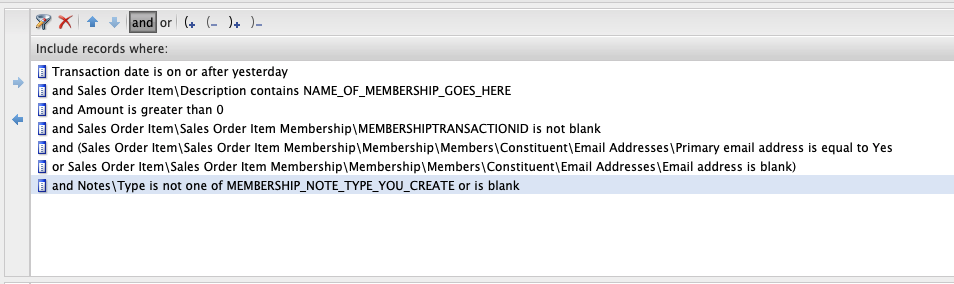
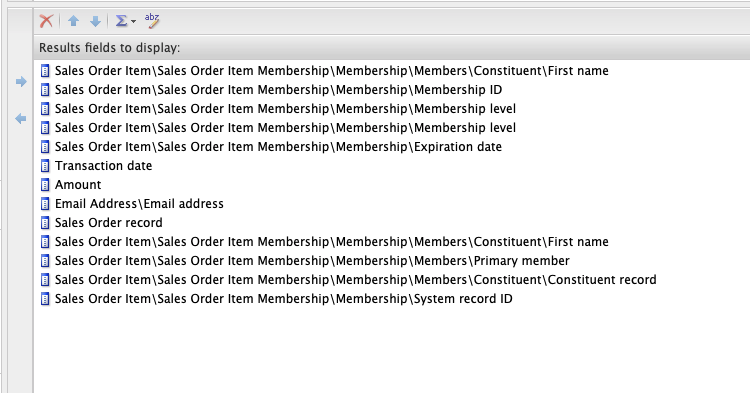
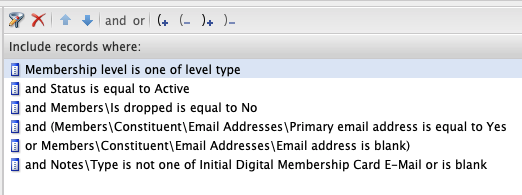
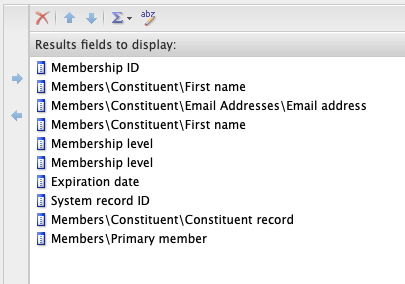
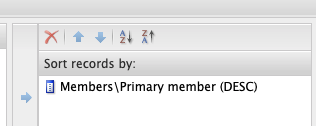
Membership Query Example

June 23, 2021 By Rick Hernandez

Filed Under: Development, Digital Membership Cards, Help Center

How to create a constituents query

June 22, 2021 By Rick Hernandez

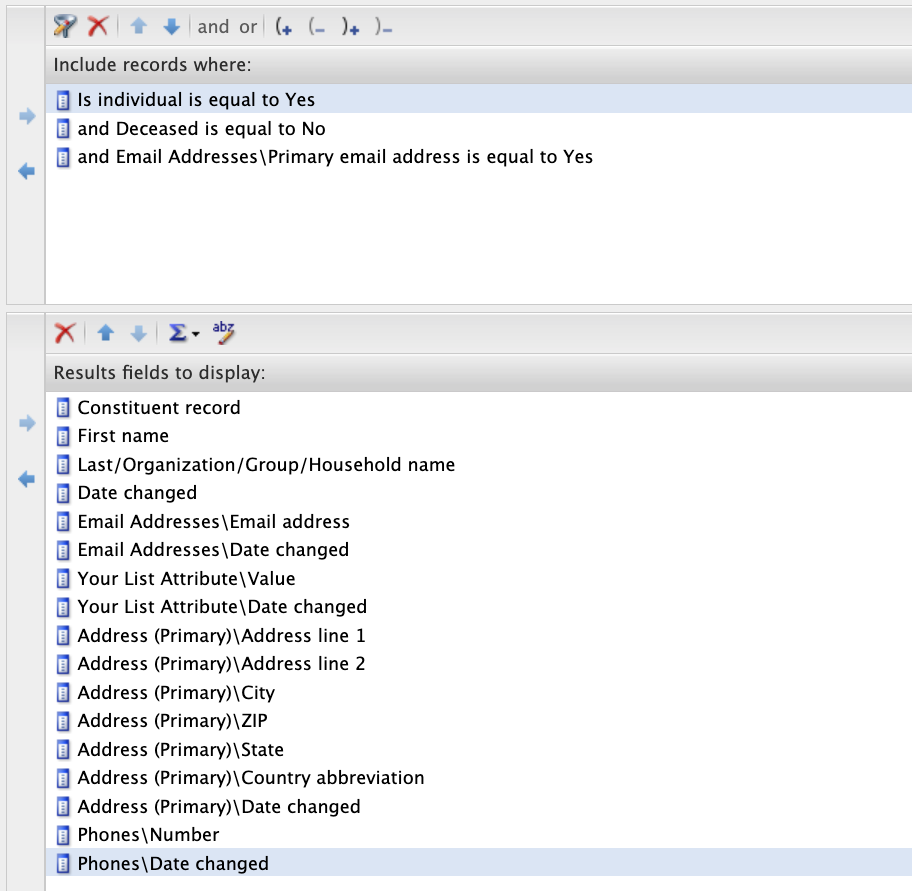
Below is a basic query to pull most used constituent data.

Basic query for constituents

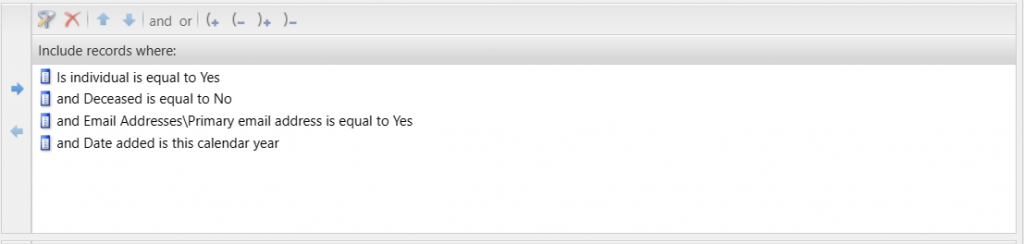
You may add additional restrictions in the “Include records where” section depending on the results you want to pull. For example, if you would like to fetch records for constituents that have been added this year, you should include the “Date added” restriction:

Filed Under: Data Bridge, Help Center, Query Examples

How to add a banner

June 21, 2021 By Rick Hernandez

var imageURL = 'ENTER_URL_HERE';
$('.main-Content > .container').prepend('<img id="banner-image" src="' + imageURL + '" style="width:100%"/>');
View Source Code

Filed Under: Checkout Flows, Help Center, JavaScript

How to verify domain name with Cloudflare

June 16, 2021 By Rick Hernandez

Learn how to verify your domain name with Social Good Software so you can start sending emails with the Email Designer.

Filed Under: Account, Domain Name, Help Center

  • « Go to Previous Page
  • Page 1
  • Interim pages omitted …
  • Page 9
  • Page 10
  • Page 11
  • Page 12
  • Page 13
  • Interim pages omitted …
  • Page 20
  • Go to Next Page »

Social Good Software | Altru software integrations | Deduper | Calendar Builder | Email Designer | Barcodes Reader | Checkout Flows | Membership Portal | Online Template | API Integrations