Connect PAT with application
Connect your new personal access token PAT with the application.
If you have an existing connection with your account, you can skip to step 3 and enter just the username and personal access token.
Step 1:

- Open a new tab and log into Altru.
- Click on the “Home” button.
- Copy the URL from your browser.
Step 2:
- Log into your account.
- Click on “Settings”.
- Click on the “Altru”.
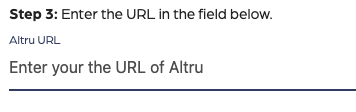
- Paste the Altru URL into the URL field.
- Click on the “Validate URL” button.
Step 3:
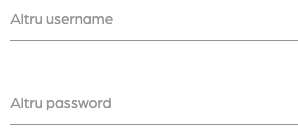
- Add your username and password.
- The username is “sgs-account”
- The password is the personal access token (PAT)
- Click on the “Save credentials” button.
- Click on the “Test Connection” button to verify that your credentials are valid.
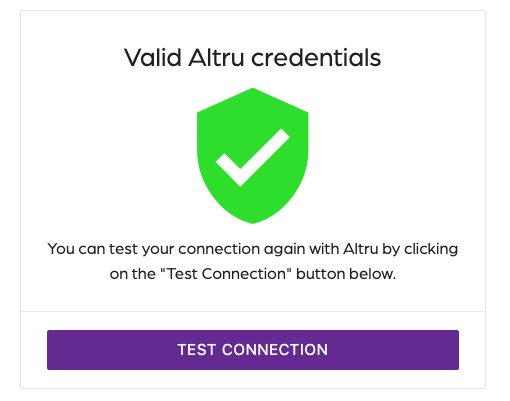
Now view the message “Valid Altru Credentials”, indicating that your credentials are valid, and you are ready to start using the application.
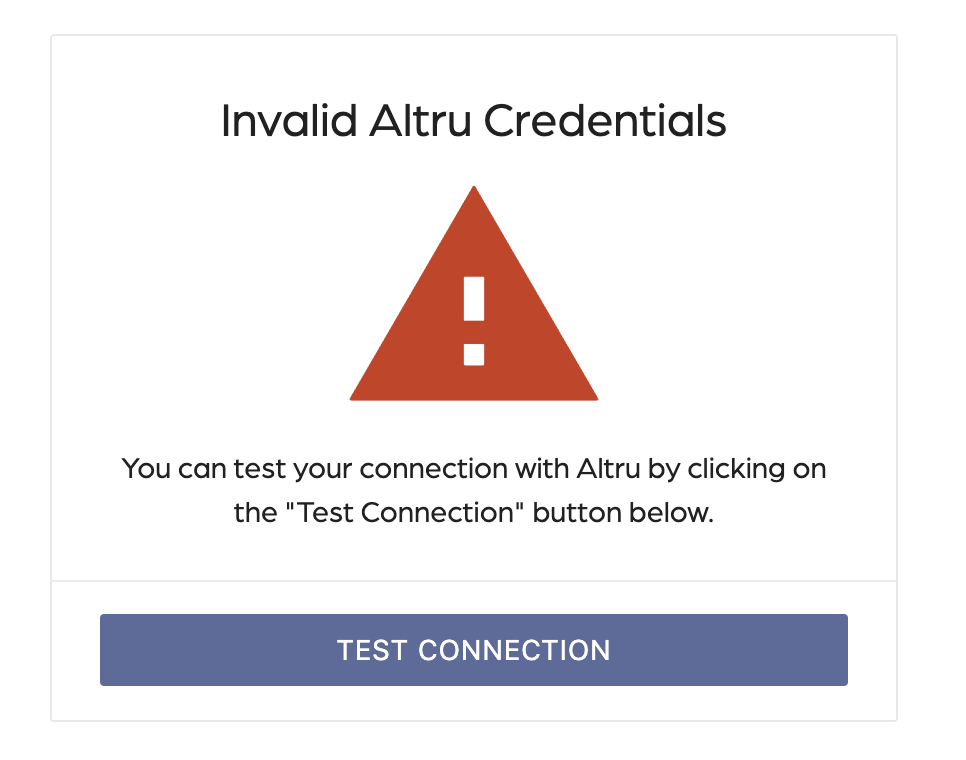
If you see the “Invalid Altru Credentials” message, please verify that you have followed all the steps correctly. A typo or an invalid value could cause this message.
If you are updating an account that was previously connected, use the following format to get the values needed.
Altru Domain: https://XXX.blackbaudhosting.com
Altru Root Directory: XXX
Altru Username: ENTER_YOUR_USERNAME
Altru Password: ENTER_YOUR_PASSWORD
Altru Database: XXX-XXX-XXX-XXX
Altru Instance ID: XXX