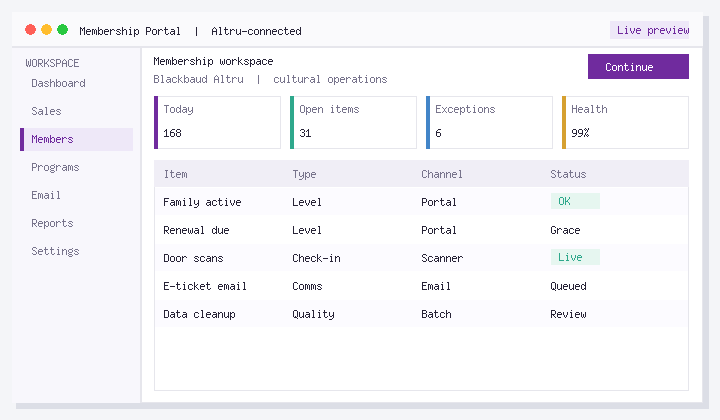
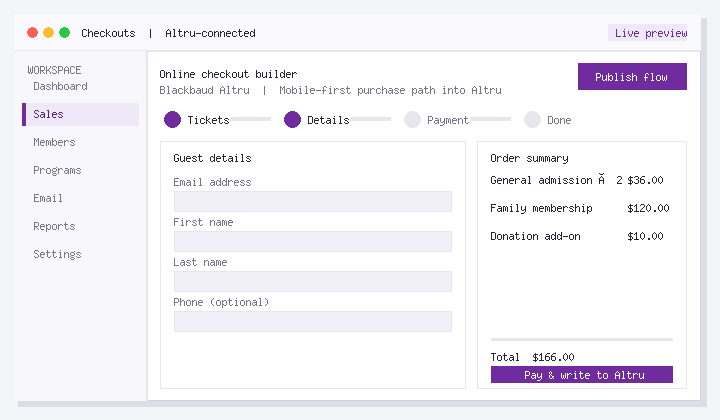
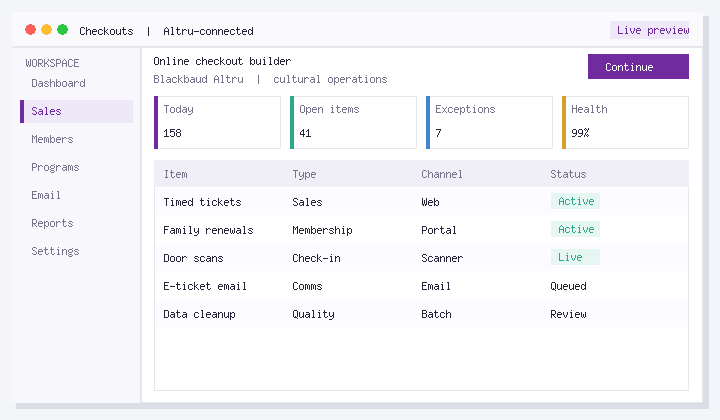
Edit your membership portal content to align it with your organization’s design and style. Follow the steps provided below to know how to modify each page of your portal and add touches based on your organization’s preference.
Steps to edit membership portal content
1: Go to your Social Good Software account.
2: Click on Development.
3: Proceed to the Membership Portal.
4: Go to Settings then click the Membership Portal link to preview its content.
5: You can edit the membership portal content by going to the Designer tab.
6: Click the pencil sign to start adding an image and edit the content. When adding an image, click the delete icon and then upload the picture. Make sure that it has the exact image size required by the portal to avoid being cropped. You can also add an Alt tag for it.
7: Preview to check the changes you made, then click Save if you are happy with the output.
8: You can edit the following pages the same as the above example:
- Login
- Verify email
- Register
- Opt-in
- Account lookup
- Phone lookup
- Membership lookup
- Help
- Email’s found
9: As for the following, you need to log in to your account before you can make changes to these pages:
- Overview
- Orders
- Refunds
- Membership
- Account
- Questions and Answers
10: To edit the above pages, log in to your SGS account then go back to Designer and refresh. Below is the Overview page that you can modify, click on the pencil sign and change the labels as you want. Save the changes you made if you’re content with the output.
11: You can proceed to other pages and make necessary changes by going to the Preview Page. You can also check what these pages and sections look like on desktops, tablets, and phones.
You can edit your membership portal but some pages require you to log in to your account while other needs you to log out.
Please reach us through our support channel if you have questions.