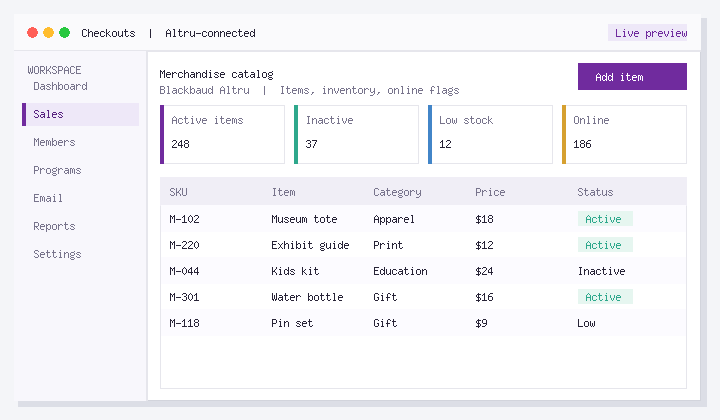
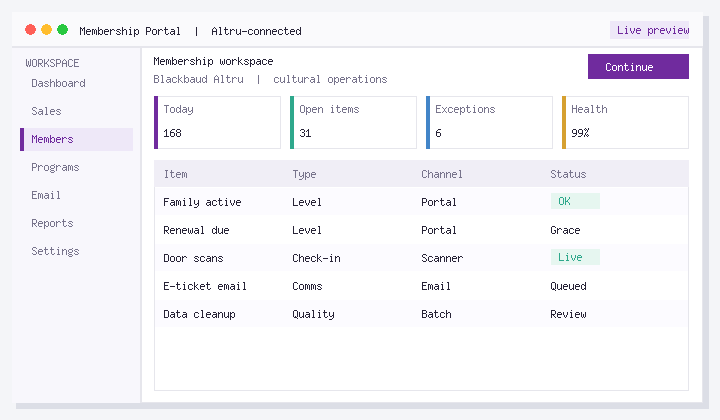
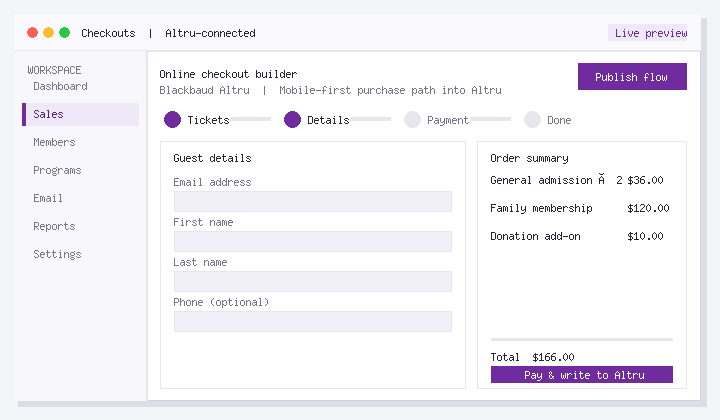
Checkout flows let Blackbaud Altru organizations replace clunky default online purchase experiences with a modern, brand-aligned checkout. Guests buy tickets, memberships, and event packages more easily, while your team keeps transactions recorded in Altru.
Social Good Software checkout flows connect to Altru so inventory, pricing, and order data stay in one system of record. This guide covers what you need before setup and the basic steps to enable a flow on an Altru web page.
Before you get started
- An active Blackbaud Altru account
- A Social Good Software account with checkout flows enabled
- Access to Altru Web / Page Designer for the page that will host checkout
Why museums enable Altru checkout flows
- Faster mobile checkout for timed tickets and memberships
- On-brand forms that match your website design
- Fewer abandoned carts versus default Altru web experiences
- Room to add upsells, donations, and clearer program choices
Steps to enable checkout flows in Altru
- Log into Altru and open the Web tab.
- Open Page Designer for the page where guests should start checkout.
- Navigate into the page designer settings until you reach the HTML / advanced code area for that page.
- Open the HTML code window.
- Copy the embed code provided in Social Good Software for your checkout flow.
- Paste the code into the Altru page HTML area and save.
After you save, open the public page and complete a test purchase in a sandbox or low-impact scenario. Confirm the order appears correctly in Altru and that confirmation messaging matches what guests should receive.
Tips for a smooth launch
- Test on mobile before marketing the new checkout URL
- Confirm price types, programs, and capacity rules match Altru
- Coordinate email acknowledgments if you also use automated eTicket or membership messages
- Track conversion with Google Analytics or Google Tag Manager once traffic is live
If you want help mapping programs, memberships, or multi-step checkout paths, book a demo with Social Good Software.